Documentation | AI-Dispatcher
A short overview of KI-Dispatcher. You receive the full user guide (PDF) with your purchase.
Getting Started
System Overview
KI-Dispatcher is a program for planning drivers and vehicles in bus transport. You enter drivers, vehicles and trip plans, and the program calculates the roster, checks working-time and rest rules and prepares travel orders. The Pro and Enterprise plans add statistics, a map view, AI analytics of the roster and the Android app for drivers; Enterprise also includes the tourism module.
- Automatic monthly roster of drivers and vehicles
- Checks against working-time and rest rules
- Travel orders from the roster (PDF)
- The company's own rulebook
Installation
System Requirements
- Windows 10 or Windows 11, 64-bit
- About 1 GB of free disk space, screen of at least 1366 × 768
- Internet: for the download, licence activation and the map view; the program itself also works offline
Installation Steps
- Download the installer for your plan (you receive it after purchase)
- Run the installer (Setup.exe); if Windows shows a warning, click More info, then Run anyway
- Follow the installation wizard
- Start KI-Dispatcher and activate the licence: you send the computer ID through the activation page and the key arrives by email
Dashboard
Dashboard Overview
The start tab (Dashboard) shows the situation for today.
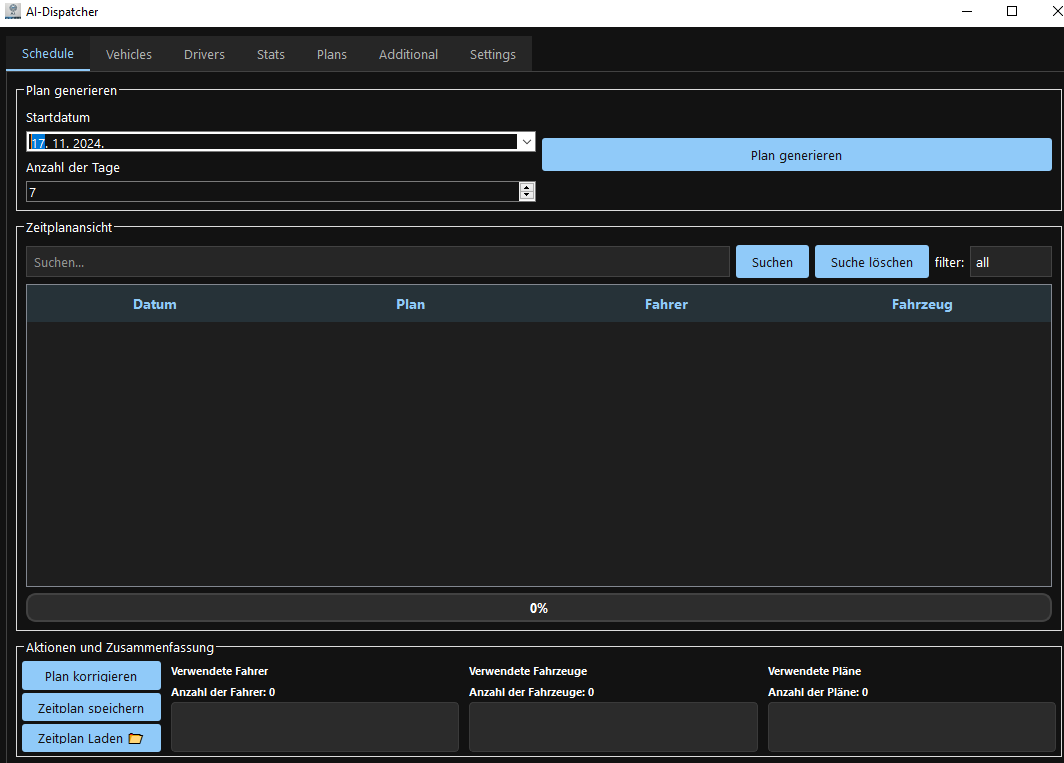
Example of the Schedule tab
What it shows
- Number of drivers and vehicles in use
- Who is available
- Active warnings
- Result of the rule check
Vehicle Management
Adding a New Vehicle
- Open the Vehicles tab and choose Add new vehicle in the Select vehicle menu
- Enter the name (vehicle label), capacity, type and city
- If needed, untick Available (an unavailable vehicle is not used in the roster)
- Confirm with OK
Map view (Pro and Enterprise)
The roster is shown on a map; an internet connection is required. This is not live vehicle tracking.
Driver app (Pro and Enterprise)
Connecting the phone
The computer running KI-Dispatcher is also the server the phones connect to. In the API Server tab set the passwords and the API key and start the server; in the app on the phone enter the server address, port, API key and the driver's username and password. The phone and the computer must be on the same Wi-Fi network. For use outside the company Wi-Fi there is a separate server (user guide, chapter 17).
Publishing the roster
The roster reaches drivers when you publish it on the Schedule tab. The app does not send notifications to the phone: drivers see the new roster and changes when they open the app or refresh the view. The full steps are in the user guide (chapter 11).